How to Find Name of Your Computer: A Guide for Windows 10/11 and Mac Users
Discover easy ways to find your computer's name: for windows 10/11 and mac. Complete practical guide
- 01
How to Find Your Computer's Name: Windows 10/11 & Mac
Are you looking for your computer's name, but aren't sure where to start? Whether you're troubleshooting, managing settings, or simply curious, learning how to find your computer's name on Windows 10/11 or Mac is relatively straightforward. Follow these steps, and we'll walk you through it.
- 02
Step 1: Find Your Computer's Name on Windows 10/11
Windows 10
- Open Settings: First, press the ⊞ Win key and the i key at the same time. This will bring up the Settings menu.
- Navigate to System: From the left panel, find and click on the "System" option, and click on the "About" tab.
Tip: If you're using Windows 11, simply look for "About" at the top of the System settings window.
- Check the Device Specifications: Here, you'll see your computer's name listed alongside other details like the processor, installed RAM, and hardware ID. If you want to change the name, click on "Rename PC."
Windows 7 and 8
- On Windows 7: Right-click on "Computer" in your Start menu and select "Properties." Your computer's name will be highlighted.
- On Windows 8 and 10: Press the ⊞ Win key and press X, then select "System" from the menu. Your name will be at the top of the screen.
- 03
Step 2: Find Your Computer's Name on Mac
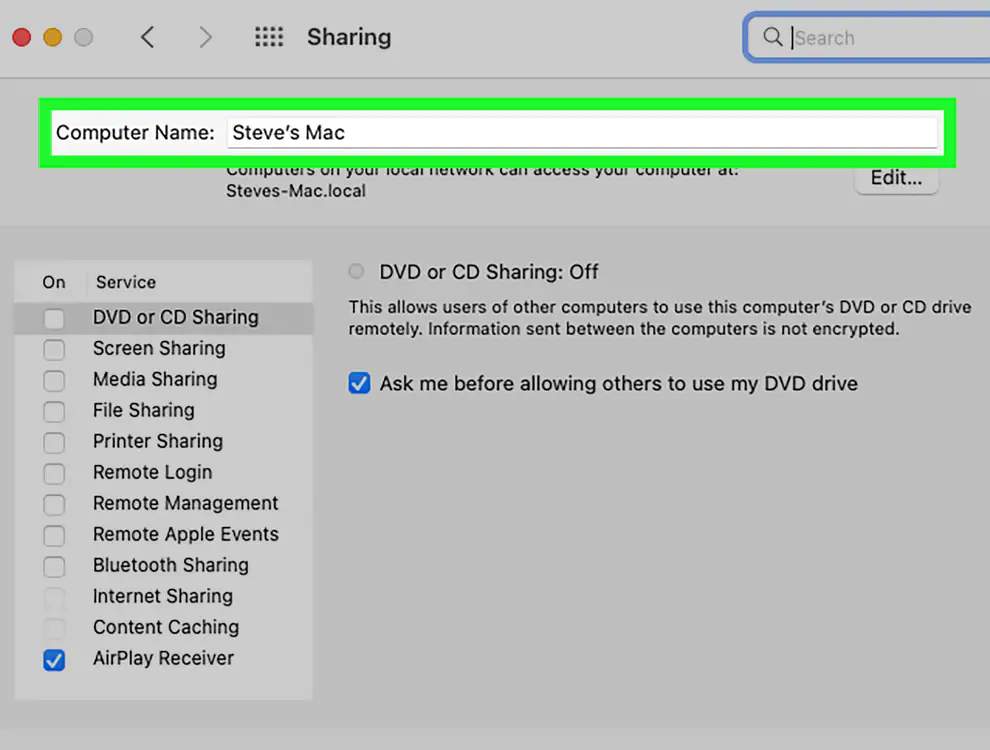
- Open System Preferences: Click on the Apple logo in the top-left corner of your screen, then choose "System Preferences." It's like opening a settings menu for your Mac.
- Head to General Settings: Find and click on the "General" tab. This area usually has a little gear icon next to it, making it easy to spot.
- Look for Your Computer's Name: At the top of the General settings, you'll see a section labeled "Computer Name" and "HostName." That's where you'll find the name of your computer.
- 04
Identify Your Computer's Name: A Quick Guide
- Tip: Keep your Windows 10/11 or Mac up to date to enjoy the best performance and security.
- Mistake: Don't change your computer's name in settings unless you have a good reason. It can sometimes cause problems.
- 05
FAQs
1. Can I change my computer's name easily?
Sure thing! On Windows 11, you can change your computer's name in Settings. For Windows 10, look for "Rename PC." On a Mac, go to System Preferences and change the "Computer name" and "HostName" fields.
2. What if I can't find the name under the About tab?
Sometimes, you might have to check the "Device specifications" section directly. If you're using an older version like Windows 7 or 8, just follow the steps for those versions.
3. Do I need to restart my computer after changing the name?
No need to restart! Changing your computer's name usually takes effect right away. But if it’s not syncing properly, a restart might help to refresh the change.

Did this guide help you?
Your feedback helps us keep WeGuideHow accurate, tested, and clear.
Read More
Relevant articles and tested guides you might find helpful next.

Are You Ready to Explore Intermittent Fasting?
Are You Ready to Explore Intermittent Fasting? Intermittent fasting is trendy, but the question is will it work for you to get healthy? As you are probably aware, there are so many different diets out there that claim to help with weight loss and disease prevention: low-fat, low-carb, keto, paleo, whole 30, vegetarian, vegan, DASH, Mediterranean, MIND. You get the idea, there are a lot of diets out there. Okay so today let’s get to it and talk about intermittent fasting.

What Those Dashboard Symbols Are Telling You
What Those Dashboard Symbols Are Telling You is a rewarding project. What Those Dashboard Symbols Are Telling You is a rewarding project. Cracking the Code is a rewarding project. In this guide, you'll learn how to read the secret messages from your car's dashboard and know exactly what to do when those warning lights come on, so you can drive confidently and safely. Just turn to this guide for clear, friendly explanations and peace of mind.

Tips to Tune Your Facebook Feed for Better Content
Tips to Tune Your Facebook Feed for Better Content is a rewarding project. By tweaking your Facebook settings, you can easily block out irrelevant content and highlight the posts from your favorite friends and pages.